
Gallery Templates
If you want to maintain a consistent look and feel between your website and Sprii content, you can do so by writing your own markups within templates which Sprii will use to render live shows and product clips.
Within your Sprii Gallery Element, you write a template that would container data-sprii-action and data-sprii-element attributes.
Looking for inspiration?
Check out the Template Examples page for interactive, editable examples with live previews.
Live Show Template
For live shows, you can make use of show-card templates.
→ See live examples: Portrait Gallery, List Gallery
<!-- Basic Live Show templating example -->
<div
  class="sprii-shows-gallery"
  data-sprii-statuses="vod">
  <template data-sprii-template-type="show-card">
    <h2 data-sprii-element="name"></h2>
    <h3 data-sprii-element="name-short"></h3>
    <img
      data-sprii-action="open-show"
      data-sprii-element="cover-photo" />
    <img
      data-sprii-action="open-show"
      data-sprii-element="cover-photo-portrait" />
    <img
      data-sprii-action="open-show"
      data-sprii-element="video-animation" />
    <span data-sprii-element="start-time"></span>
    <div data-sprii-element="description"></div>
    <a
      href="javascript:void(0)"
      data-sprii-action="read-more"
      >Read more</a
    >
  </template>
</div>
Clip Template
Similarly for product clips, you can make use of product-card templates.
<div
  class="sprii-shows-gallery"
  data-sprii-mode="products">
  <template data-sprii-template-type="product-card">
    <h2 data-sprii-element="name"></h2>
    <img
      data-sprii-action="open-clip"
      data-sprii-element="photo" />
    <div data-sprii-element="price"></div>
  </template>
</div>
Shoppable Group Template
Similarly for shoppable groups, you can make use of shoppable-group-card templates.
<div
  class="sprii-shows-gallery"
  data-sprii-mode="shoppables">
  <template data-sprii-template-type="shoppable-group-card">
    <div class="shoppable-group">
      <div data-sprii-action="open-shoppable-group">
        <img data-sprii-element="image" />
        <h2 data-sprii-element="name"></h2>
      </div>
    </div>
  </template>
</div>
Template Actions
Template actions are triggered when the user clicks on the element on which data-sprii-action is present.
The following actions are supported.
data-sprii-template-type value | data-sprii-action value | Description |
|---|---|---|
show-card | open-show | This will open the live show dialog and start playing the video |
show-card | read-more | This will open the full description of the live show's dialog |
product-card | open-clip | This will open the product clip video |
shoppable-group-card | open-shoppable-group | This will open the shoppable group videos |
Template Elements
Template elements tells Sprii what the content to bind to your markup.
The following elements are supported.
data-sprii-template-type value | data-sprii-element value | Supported HTML tags | Description |
|---|---|---|---|
show-card | cover-photo-portrait | img | Portrait cover photo of the live show |
show-card | cover-photo | img | Cover photo of the live show |
show-card | description | Any HTML container. e.g. div | Description of the live show |
show-card | name-short | Any HTML container. e.g. div | Shorter version of the name |
show-card | name | Any HTML container. e.g. div | Name of the live show |
show-card | start-time | Any HTML container. e.g. div | Localized version of the start date & time of the live show |
show-card | video-animation | img | Short animated extract of the live show |
product-card | name | Any HTML container. e.g. div | Name of the product |
product-card | photo | img | Image of the product |
product-card | price | Any HTML container. e.g. div | Price of the product |
shoppable-group-card | image | img | Image of the shoppable group |
shoppable-group-card | name | Any HTML container. e.g. div | Name of the shoppable group |
Load More Action
By default, Sprii galleries are paged. This means the data is loaded in chunks. Normally, you would need to have a trigger action to request the next chunk.
To do so, you should add a load-more action to the Sprii gallery.
<!-- Live Show templating example with load more -->
<div
  class="sprii-shows-gallery"
  data-sprii-statuses="vod">
  <!-- load more action -->
  <button data-sprii-action="load-more">Load more</button>

  <template data-sprii-template-type="show-card">
    <h2 data-sprii-element="name"></h2>
    <img
      data-sprii-action="open-show"
      data-sprii-element="cover-photo" />
  </template>
</div>
Card Containers
In the above example, the cards will be rendered one after the other in the parent sprii-shows-gallery container after the load-more action. However, this behaviour might not be desirable in cases you wish to have additional or more structured content.
In such cases, you could provide container elements with attribute data-sprii-container with value cards for rendering the cards and value load-more if you wish to self contain the load-more action. The latter ensures that Sprii automatically hides any markup associated with the load-more action when there is no further chunks to load.
<!-- Structured Live Show templating example with load more and containers -->
<div
  class="sprii-shows-gallery"
  data-sprii-statuses="vod">
  <div data-sprii-container="cards">
    <!-- optional, but makes sense to add list of cards alongside other mark-up -->
    <!-- Here Sprii will loop the rendered cards -->
  </div>
  <div data-sprii-container="load-more">
    <!-- optional, but makes sense to hide whole load-more markup if no more items, alongside other mark-up -->
    <button data-sprii-action="load-more">Load more</button>
  </div>
  <template data-sprii-template-type="show-card">
    <h2 data-sprii-element="name"></h2>
    <h3 data-sprii-element="name-short"></h3>
    <img
      data-sprii-action="open-show"
      data-sprii-element="cover-photo" />
    <img
      data-sprii-action="open-show"
      data-sprii-element="cover-photo-portrait" />
    <img
      data-sprii-action="open-show"
      data-sprii-element="video-animation" />
    <span data-sprii-element="start-time"></span>
    <div data-sprii-element="description"></div>
    <a
      href="javascript:void(0)"
      data-sprii-action="read-more"
      >Read more</a
    >
  </template>
</div><!-- Additional content along with Live Show templates with load more and containers -->
<div
class="sprii-shows-gallery"
data-sprii-statuses="vod">
<strong>Having cards container allows you to have more control over the layout.</strong>
<div data-sprii-container="cards">
<!-- Here Sprii will loop the rendered cards -->
</div>
<div>You can add data before or after or around the cards container.</div>
<div data-sprii-container="load-more">
<div>The load more container can have more markup before...</div>
<button data-sprii-action="load-more">Load more</button>
</div>... or after. Sprii hides the whole container when there is no more data</div>
</div>
<template data-sprii-template-type="show-card">
<h2 data-sprii-element="name"></h2>
<h3 data-sprii-element="name-short"></h3>
<img
data-sprii-action="open-show"
data-sprii-element="cover-photo" />
<img
data-sprii-action="open-show"
data-sprii-element="cover-photo-portrait" />
<img
data-sprii-action="open-show"
data-sprii-element="video-animation" />
<span data-sprii-element="start-time"></span>
<div data-sprii-element="description"></div>
<a
href="javascript:void(0)"
data-sprii-action="read-more"
>Read more</a
>
</template>
</div>Template Helper Classes and Events
Besides rendering the content and handling action triggers, Sprii will also trigger events and add custom classes to help assist any custom implementation your might have.
Sprii will add class sprii-loading on the corresponding parent sprii-shows-gallery container while loading the initial or additional chunks of content.
Outgoing Events
Sprii dispatches a set of outgoing events to assist custom implementations.
| Event Name | Dispatched on | Description |
|---|---|---|
sprii-cards-added | Immediate parent card container and bubbles up | Fires every time a set of cards are rendered. Event data: { newIdsAdded: string[]; hasMore: boolean } |
sprii-cards-cleared | Immediate parent card container and bubbles up | Fires every time all the cards are removed. |
sprii-cards-removed | Immediate parent card container and bubbles up | Fires every time a set of cards are removed. Event data: { removedIds: string[] } |
sprii-data-loading | sprii-shows-gallery container and bubbles up | Fires every time a chunk of data is requested. |
sprii-data-loaded | sprii-shows-gallery container and bubbles up | Fires every time a request for a chunk of data is completed. |
Incoming Events
Sprii also listens to custom events to assist custom implementations
| Event Name | Listened on | Description |
|---|---|---|
sprii-evt-load-more | sprii-shows-gallery container | This triggers the loading of the next chunk of data. |
sprii-evt-reload | sprii-shows-gallery container | This triggers the reload of the whole gallery. |
Example using Helper Classes and Events
A more elaborate use-case with the events, using a third-party slider library, Splide
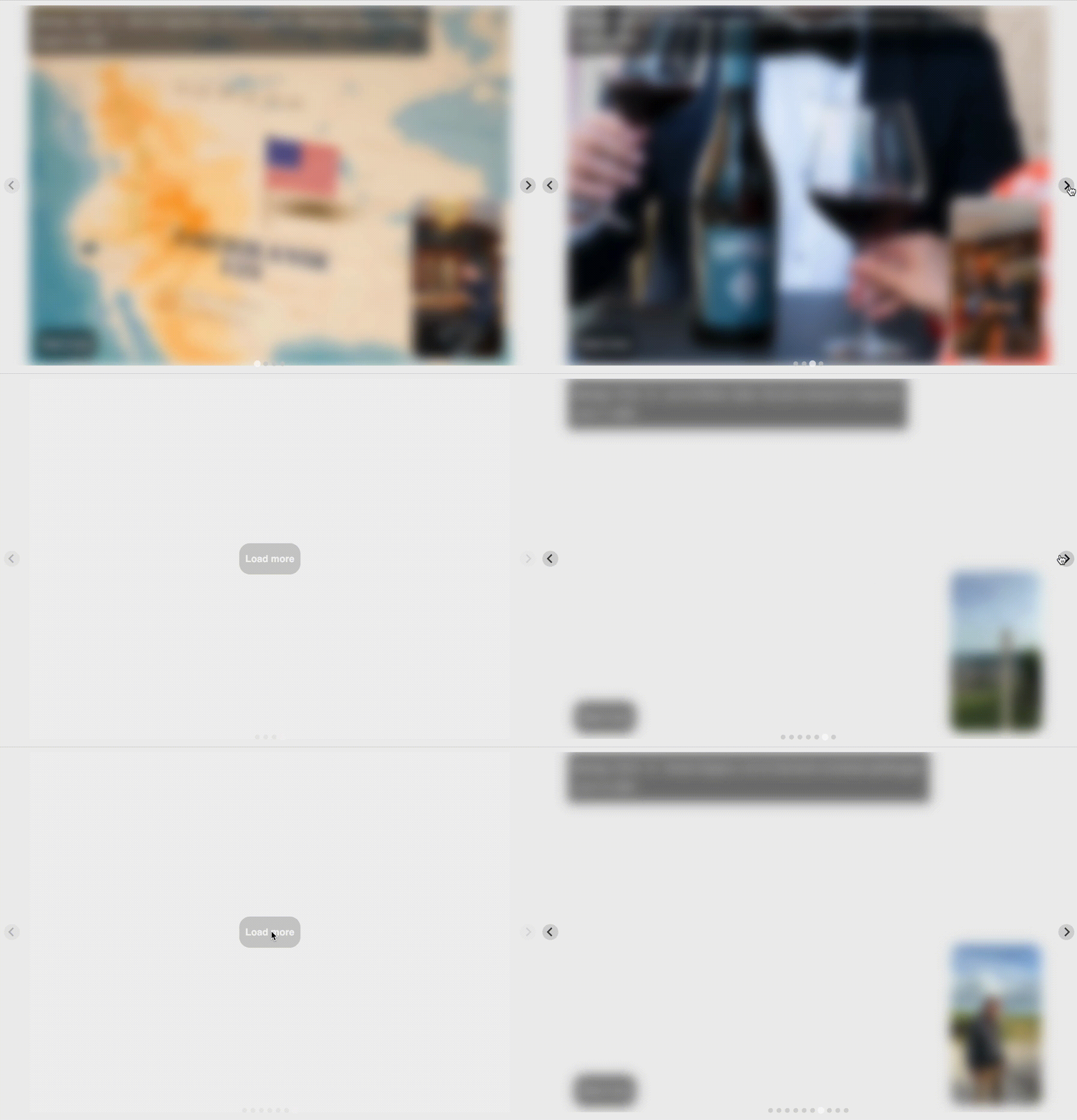
It's the result of the following code snippet
<script src="https://cdn.jsdelivr.net/npm/@splidejs/splide@4.1.4/dist/js/splide.min.js"></script>
<link
  rel="stylesheet"
  href="https://cdn.jsdelivr.net/npm/@splidejs/splide@4.1.4/dist/css/splide.min.css" />
<!-- .... -->
<div
  id="myShowsGallery"
  class="sprii-shows-gallery"
  data-sprii-statuses="vod">
  <div class="splide__track">
    <ul
      class="splide__list"
      data-sprii-container="cards"></ul>
  </div>
  <template data-sprii-template-type="show-card">
    <li class="splide__slide">
      <div class="splide-content">
        <img
          class="show-cover"
          data-sprii-action="open-show"
          data-sprii-element="cover-photo" />
        <div class="info">
          <div
            class="name"
            data-sprii-element="name"></div>
          <div
            class="time"
            data-sprii-element="start-time"></div>
        </div>
        <img
          class="show-animation"
          data-sprii-action="open-show"
          data-sprii-element="video-animation" />
        <div class="read-more-container">
          <a
            href="javascript:void(0)"
            data-sprii-action="read-more"
            >Read more</a
          >
        </div>
      </div>
    </li>
  </template>
</div>
<!-- ... -->
<script>
  const myShowsGallery = document.getElementById('myShowsGallery');

  const onCardsAdded = (evt: any) => {
    if (!templateOptions[options.template].useSplide) {
      return;
    }

    const hasMore = Boolean(evt.detail.hasMore);

    if (window.mySplide) {
      window.mySplide.options = { rewind: !hasMore };
      window.mySplide.refresh();
    } else {
      window.mySplide = new Splide(myShowsGallery.value, {
        rewind: !hasMore,
      }).mount();
    }

    const existingMoreSplideIndex = window.mySplide.Components.Slides.get().findIndex(
      (slide: any) => slide.slide.classList.contains('show-more-splide')
    );

    if (existingMoreSplideIndex > -1) {
      window.mySplide.remove(existingMoreSplideIndex);
    }

    if (hasMore) {
      window.mySplide.add(
        `
            <li class="splide__slide show-more-splide">
              <div class="splide-content splide-more-content">
                <div class="more-slides-wrapper">
                  <a href="javascript:void(0)" class="more-slides">Load more</a>
                </div>
              </div>
            </li>
          `
      );

      myShowsGallery.querySelector('.more-slides')?.addEventListener('click', () => {
        myShowsGallery.dispatchEvent(new CustomEvent('sprii-evt-load-more'));
      });
    }
  };

  myShowsGallery.addEventListener('sprii-cards-added', onCardsAdded);
</script>
``